
AutoCalcsTo3D Bridge Help
🚀 LEGACY SYSTEM - Upgrade to CalcsLive Plug for Inventor
This documentation is for the legacy AC3D Bridge desktop application.
We highly recommend upgrading to the new CalcsLive Plug for Inventor, which offers significant improvements:
Why Upgrade?
| Feature | Legacy AC3D Bridge | New CalcsLive Plug |
|---|---|---|
| Calculations | Pre-built library only | ✅ Unlimited user-generated calculations |
| Integration | Desktop app (Inventor App Store) | ✅ Web-based dashboard (no install) |
| Workflow | One-way (Calculation → Model) | ✅ Bidirectional (Model ⟷ Calculation) |
| Unit System | Basic units | ✅ 67+ engineering unit categories |
| Deployment | Requires Inventor App Store | ✅ Python bridge server you control |
| Updates | Manual app updates | ✅ Automatic dashboard updates |
Get Started with CalcsLive Plug for Inventor
- Read the Guide: CalcsLive Plug for Inventor Help
- Install Bridge Server: GitHub Repository
- Launch Dashboard: Open Dashboard
The legacy documentation below is preserved for existing AC3D Bridge users only.
Legacy Overview
AutoCalcs is a web-based calculation platform that revolutionizes engineering calculations through automated unit conversion and multi-step calculation capabilities.
AC3D (AutoCalcsTo3D Bridge) is a legacy desktop application that integrates AutoCalcs calculations with Autodesk Inventor. It allows users to:
- Access associated AutoCalcs calculations to update 3D models
- AutoCalcs empowers Inventor to perform custom calculations
- Browse AC3D supported parametric 3D models
- Update Inventor model parameters based on calculation results
For Preview version download, click AC3D Bridge, or visit Inventor's App Store to download AC3D Bridge.
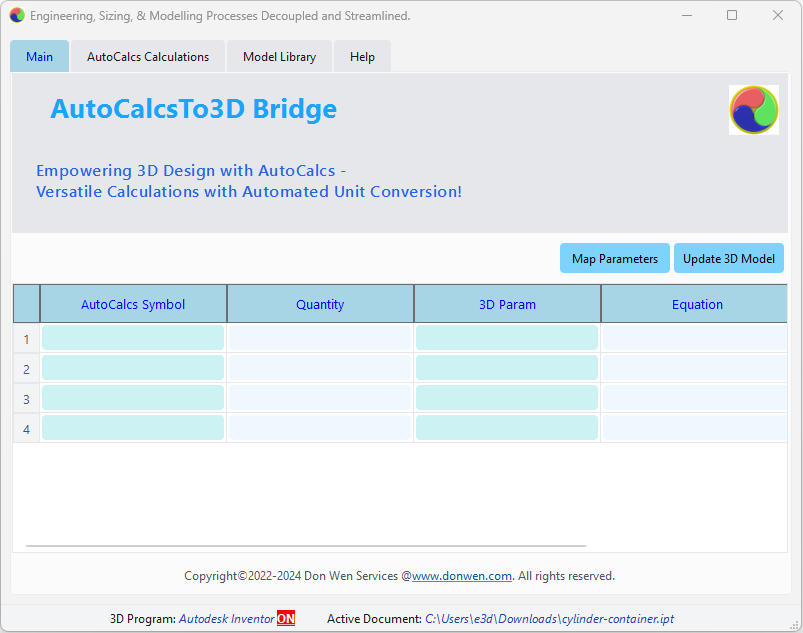
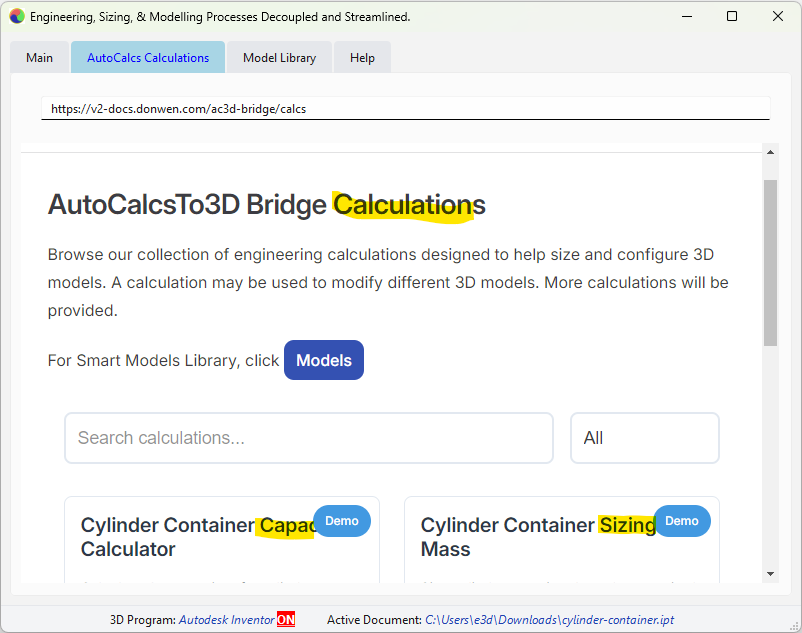
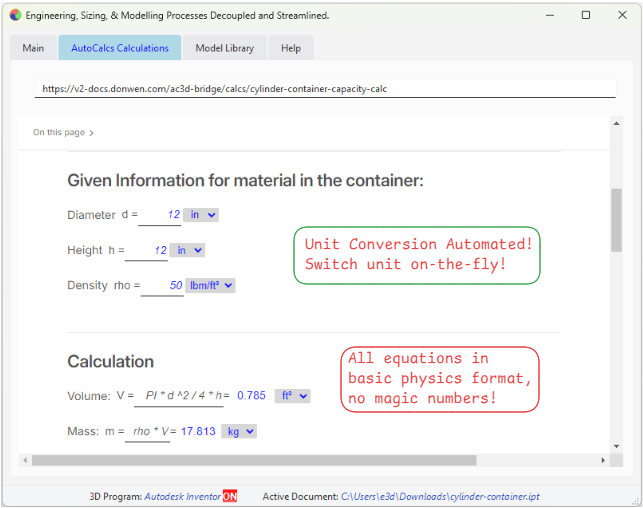
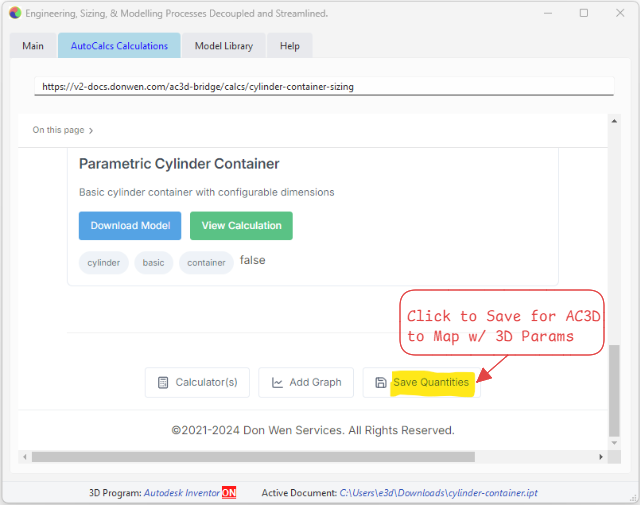
Workflow in Photos

AutoCalcsTo3D Bridge Intro
Getting Started
- Launch
AC3D Bridgeapplication - Launch Autodesk
Inventorand load a model - The interface has four main tabs:
Main: Controls data flow between AutoCalcs and InventorAutoCalcs Calculations: Shows calculation pagesModel Library: Browse available models and calculationsHelp: Access help documentation
Performing AutoCalcs Calculations
- In AutoCalcs Calculation tab:
- Enter required values, switch units as needed, in the calculation page
- Click
Save Quantitiesbutton to store results
- In Main tab:
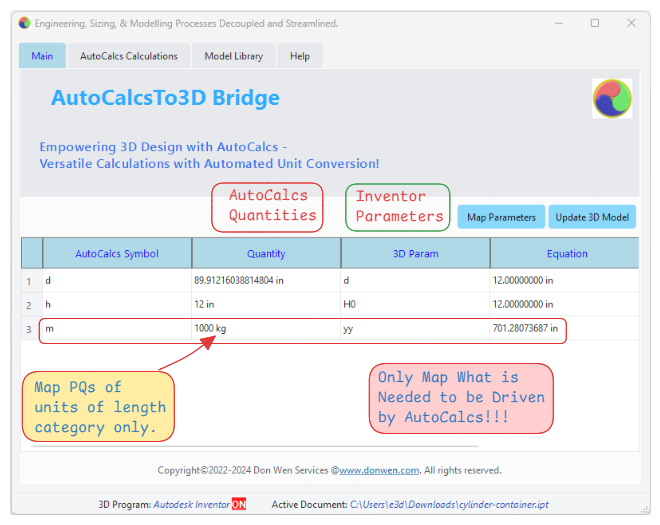
- Click
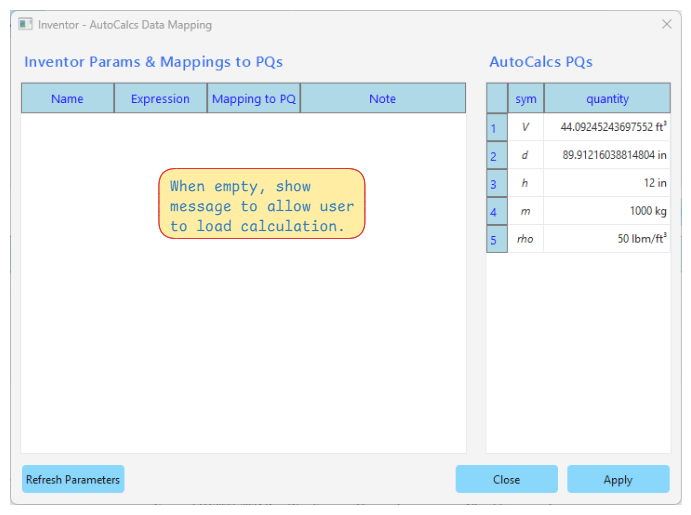
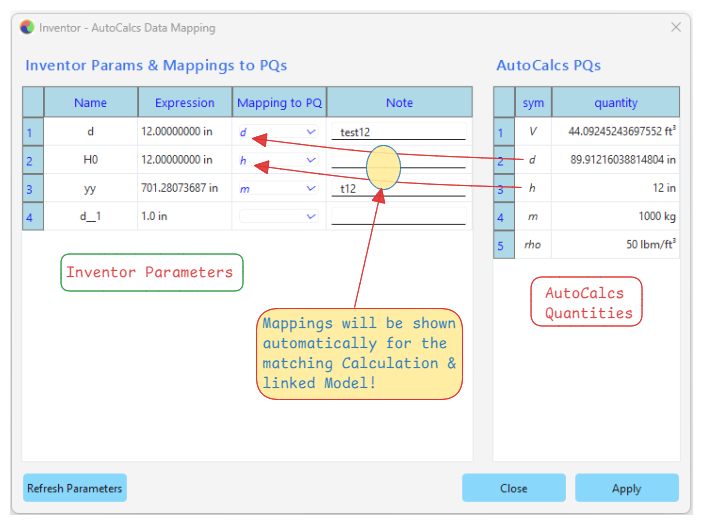
Map Parametersto openParameters Editor Window.- Inventor model's parameters and AutoCalcs Calculation's quantities will be listed respectively in their tables
- The table on the left hand side lists all user parameters of current Inventor model. In column "Mapping to PQ", select quantity symbol from the dropdown list to set up the mapping to AutoCalcs calculation
- Add note if needed
- The table on the right hand side lists all quantities in loaded AutoCalcs Calculation.
- Click
Update 3D Modelto pass quantities from calculation to update Inventor model
- Click
TIP
Both AutoCalcs Calculations & Model Library tabs are web browser based, thus you can right click on the page and use Back & Forward buttons to navigate.
Preparing 3D Models for AutoCalcs Calculations
- In Inventor, select the model to be used with AutoCalcs Calculations
Using Model Library
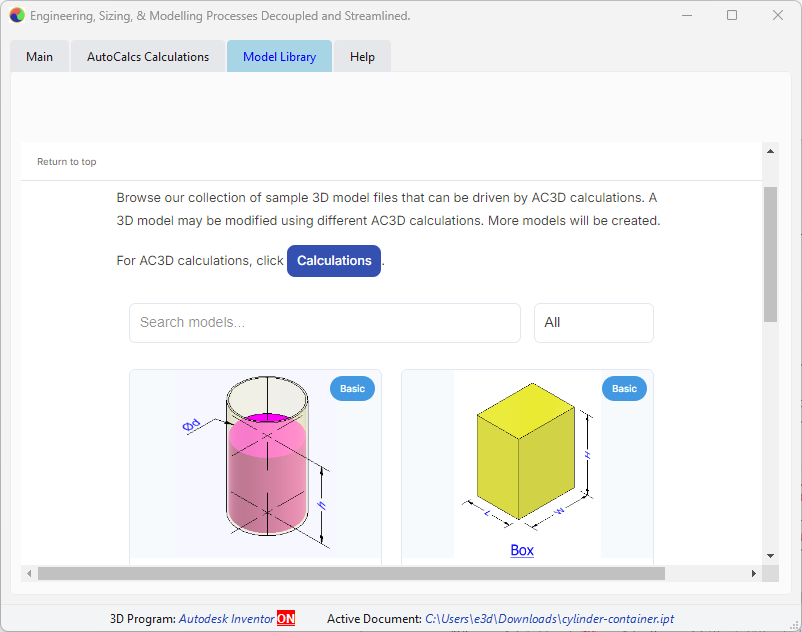
- Browse available models in the grid layout
- Users can use their own models, as long as they are compatible with AC3D.
- Search models using the search bar
- Click on a model card to opens associated calculation in the calculation tab
Migrating from AC3D Bridge to CalcsLive Plug
If you're currently using the legacy AC3D Bridge, here's how to transition to the new CalcsLive Plug for Inventor:
Migration Steps
Install CalcsLive Plug Bridge Server
- Clone repository: https://github.com/CalcsLive/calcslive-plug-4-inventor
- Install Python dependencies:
pip install -r requirements.txt - Start bridge server:
python main.py
Access CalcsLive Plug Dashboard
- Open https://www.calcslive.com/inventor/dashboard
- Sign in to your CalcsLive account (Free tier available)
- Dashboard auto-detects your Bridge connection
Recreate Your Calculations
- Option A: Use existing public calculations from CalcsLive library
- Option B: Create your own calculations at www.calcslive.com
- Link calculations to your Inventor models via drag-and-drop mapping
Set Up Parameter Mapping
- Open your Inventor model with User Parameters (fx)
- Select CalcsLive article in dashboard
- Drag Physical Quantities (PQs) from calculator panel to parameter table
- Click "Update 3D Model" to persist mappings
Key Differences to Understand
Calculation Creation:
- AC3D: Pre-built calculations only (XML-based)
- CalcsLive Plug: Create any calculation online using markdown-based PQ syntax
Integration Method:
- AC3D: Desktop app with custom properties
- CalcsLive Plug: Web dashboard + Comment-based mapping (
CA0:symbol #note)
Workflow:
- AC3D: Calculation → Model (one-way)
- CalcsLive Plug: Model ⟷ Calculation (bidirectional Engineering-Driven Design)
Parameter Storage:
- AC3D: Custom Inventor properties
- CalcsLive Plug: Lightweight Comment field metadata (more portable)
Need Help?
- Complete Guide: CalcsLive Plug for Inventor Documentation
- Support: don.wen@calcslive.com
- GitHub Issues: Report issues or ask questions
Benefits of Upgrading
The new CalcsLive Plug system gives you:
- Freedom to create unlimited calculations for any engineering discipline
- Professional unit-aware calculations with 67+ unit categories
- Bidirectional workflow for iterative engineering-driven design
- Open-source bridge you control (no App Store dependency)
- Automatic dashboard updates without reinstalling software
Legacy AC3D Bridge documentation continues below.